
Courses
Open in AdminCreate, price, publish, and assign teachers to a course.
Courses are the center of the LMS: the public catalog item, the parent for modules and lessons, and the gate for enrollments and the learning player.
The sidebar badge is the number of courses you can manage.
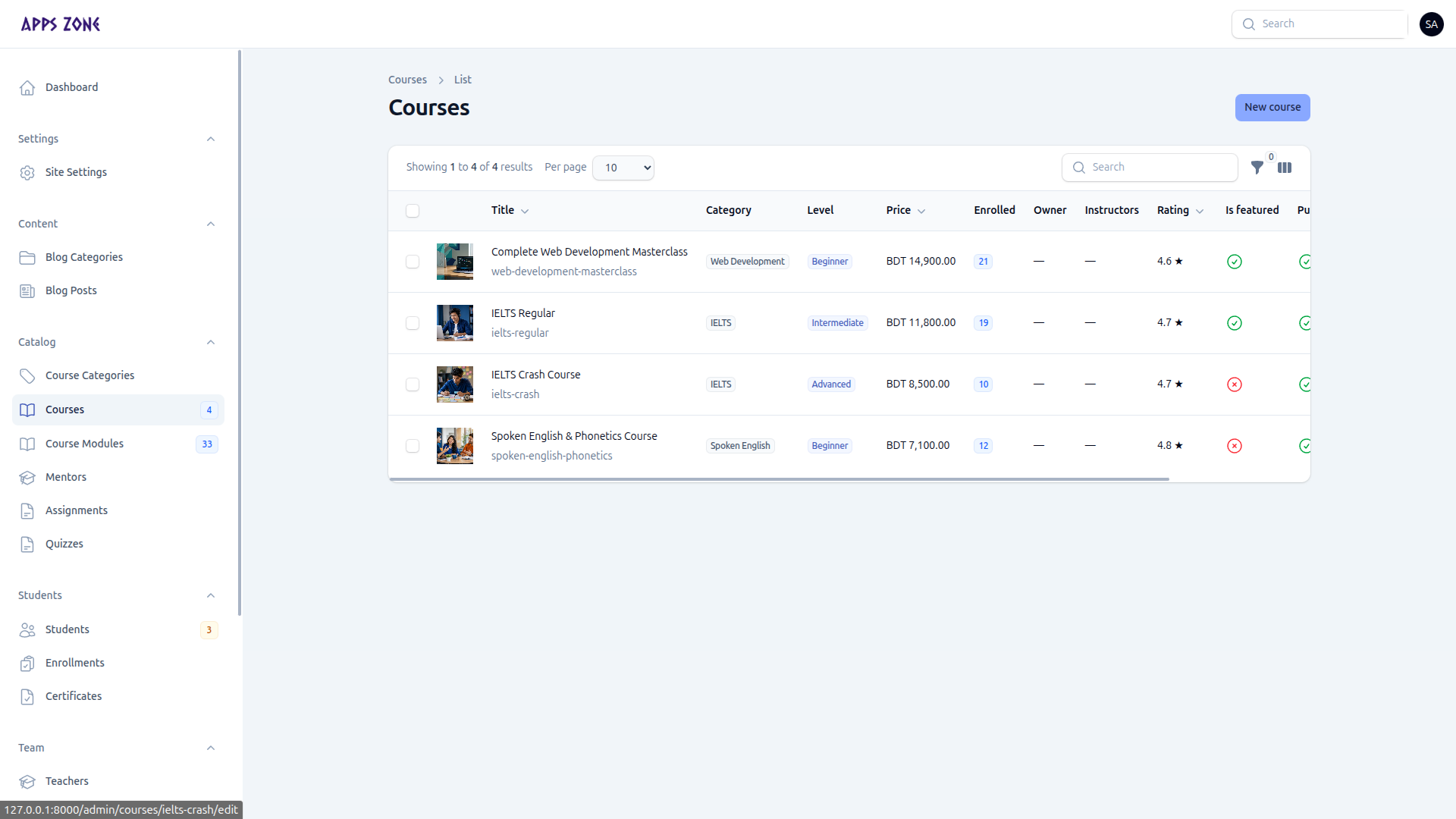
When a course is public
A course appears on /courses/{slug} only when both are true:
- Is active is on
- Published at is set and in the past
List
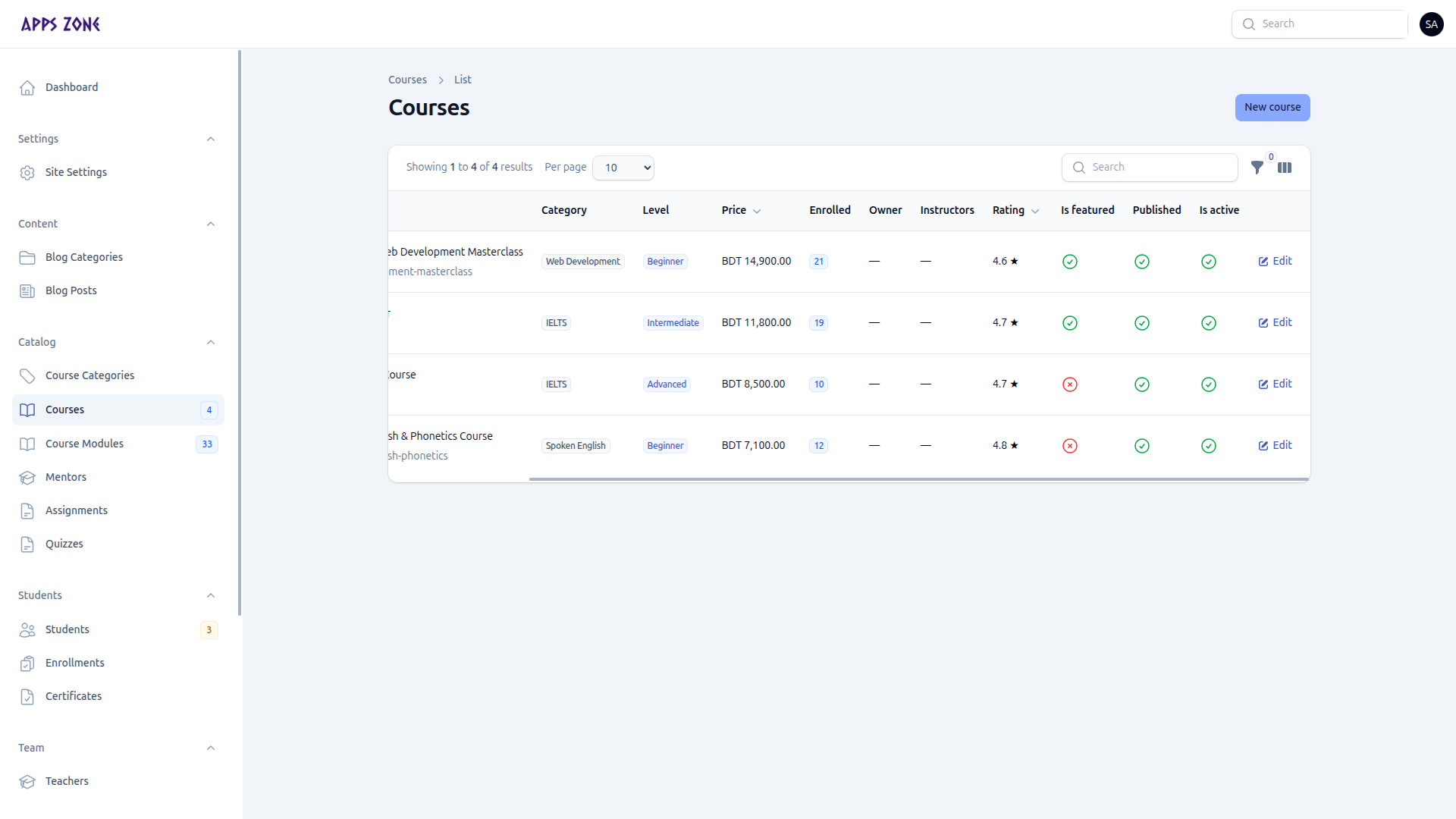
| Column | Meaning |
|---|---|
| Title + slug | Public identity |
| Category / level / price | Catalog filters |
| Enrolled | Confirmed student count |
| Owner / instructors | Teacher access |
| Rating | Approved review average |
| Featured / published / active | Visibility |
Filters: Category, Level, Active, Featured, Trashed.
Create a course
Click New course. The form has seven tabs. Work them in order.
1. Content
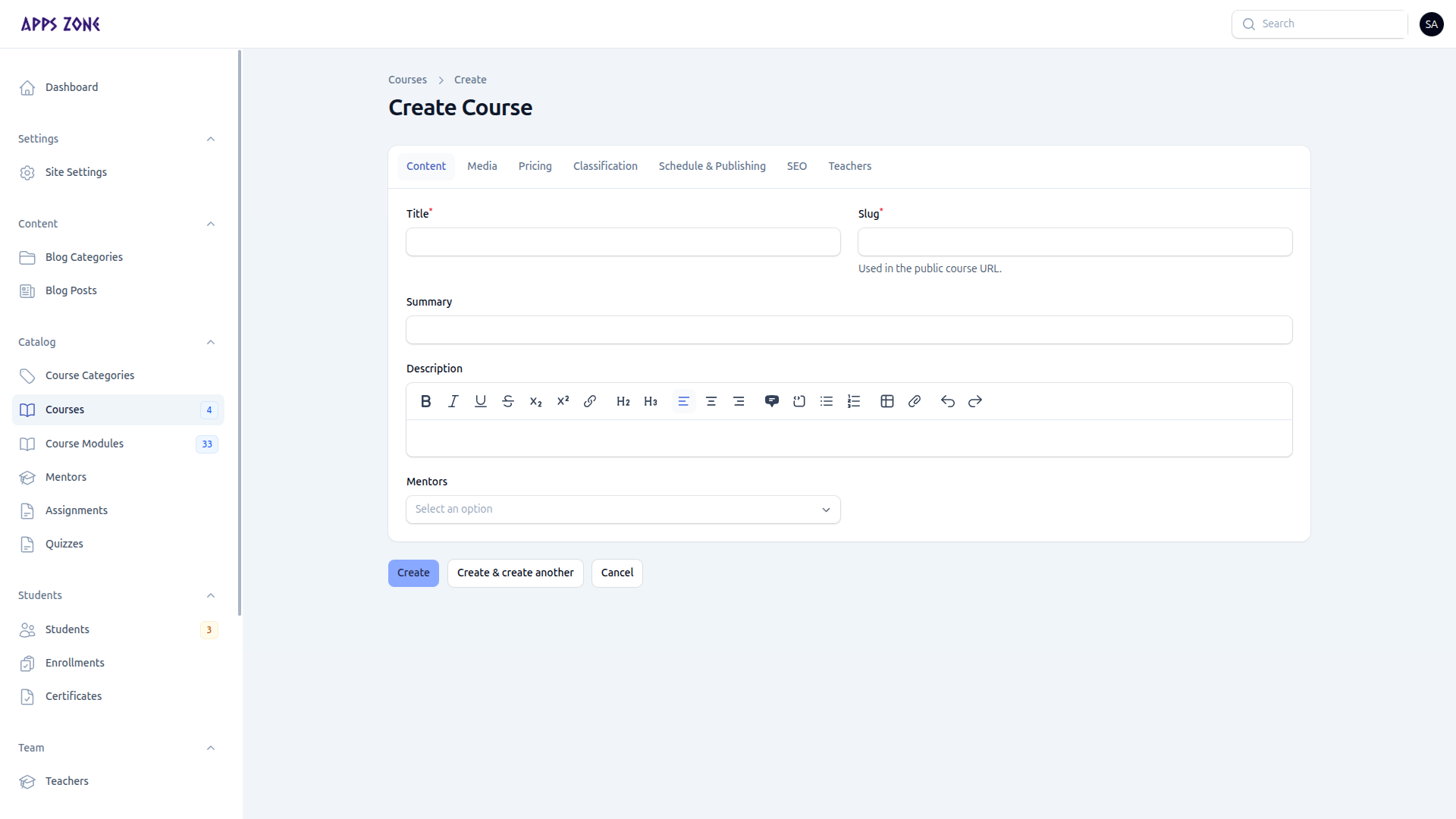
| Field | Notes |
|---|---|
| Title | Required; slug auto-fills on create |
| Slug | Public URL |
| Summary | Card text |
| Description | Full rich text |
| Mentors | Public-facing mentor profiles (not teacher logins) |
2. Media
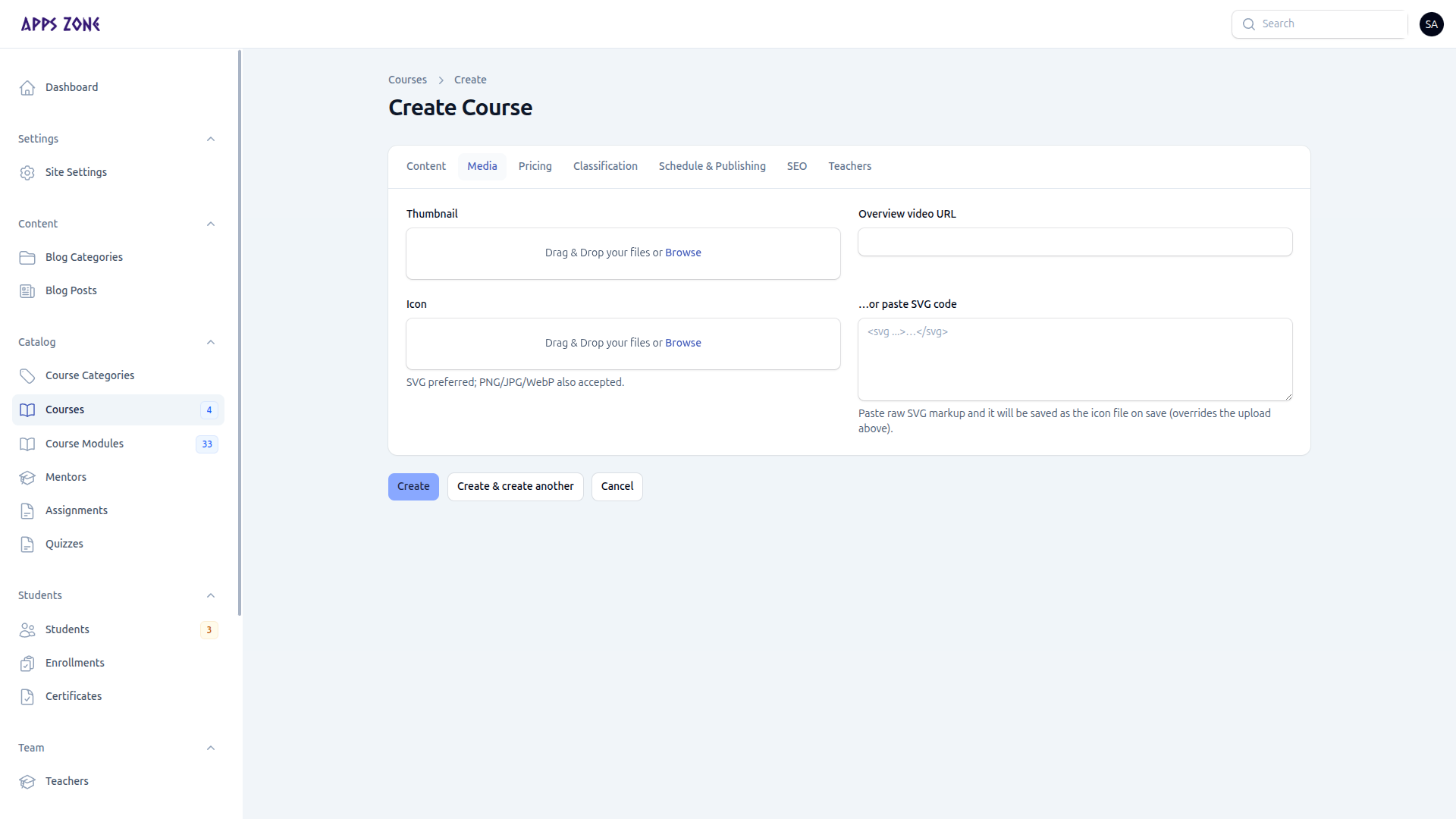
Upload a thumbnail and optional icon (SVG preferred). Paste raw SVG in the textarea to override the upload. Overview video URL is the promo clip on the public page.
3. Pricing
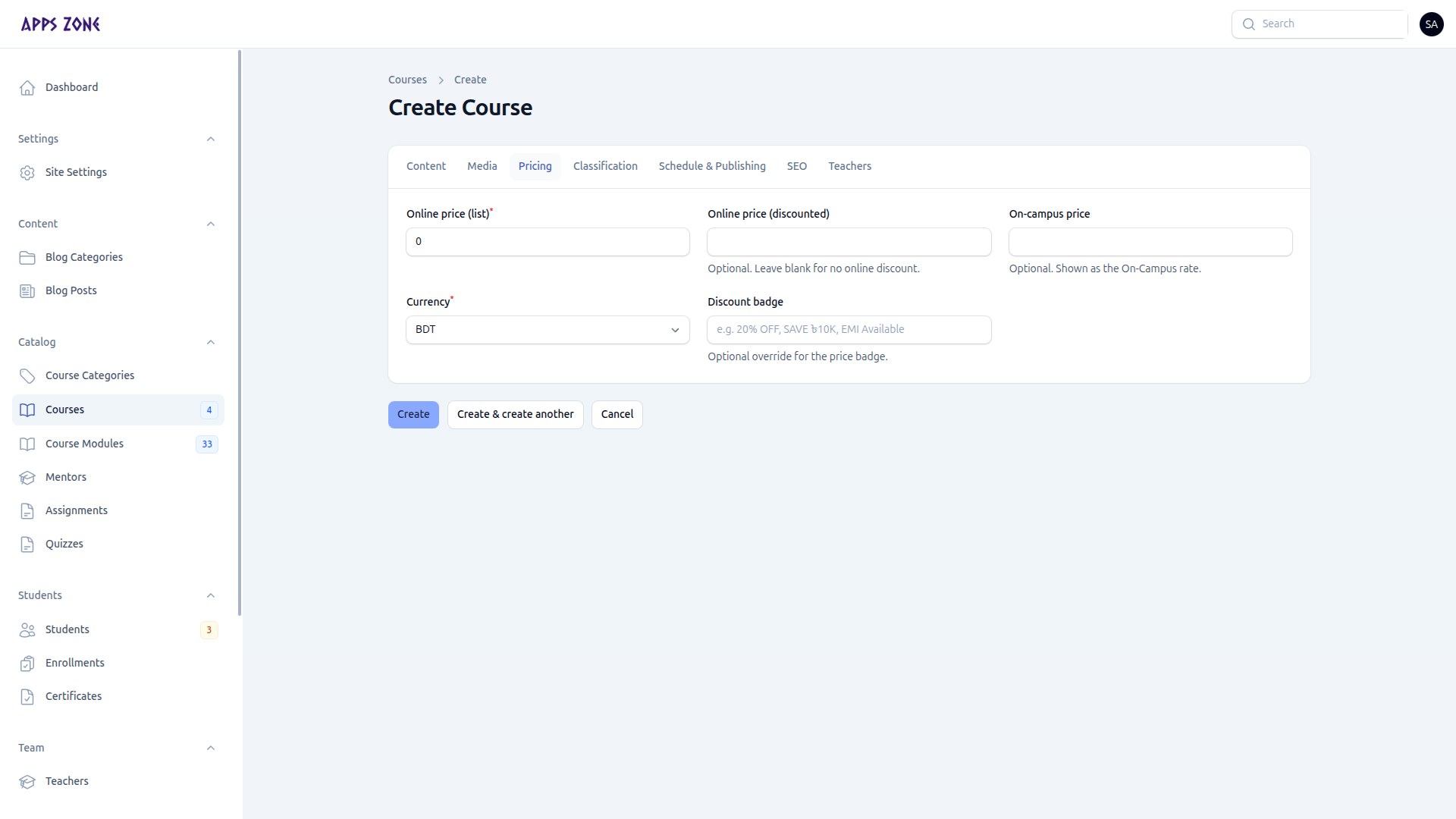
| Field | Notes |
|---|---|
| Online price (list) | Required |
| Online price (discounted) | Optional sale price used as the effective fee |
| On-campus price | Optional second rate |
| Currency | Usually BDT |
| Discount badge | Override text such as 20% OFF |
Enrollment requests copy the effective (discounted, else list) price into Agreed fee.
4. Classification
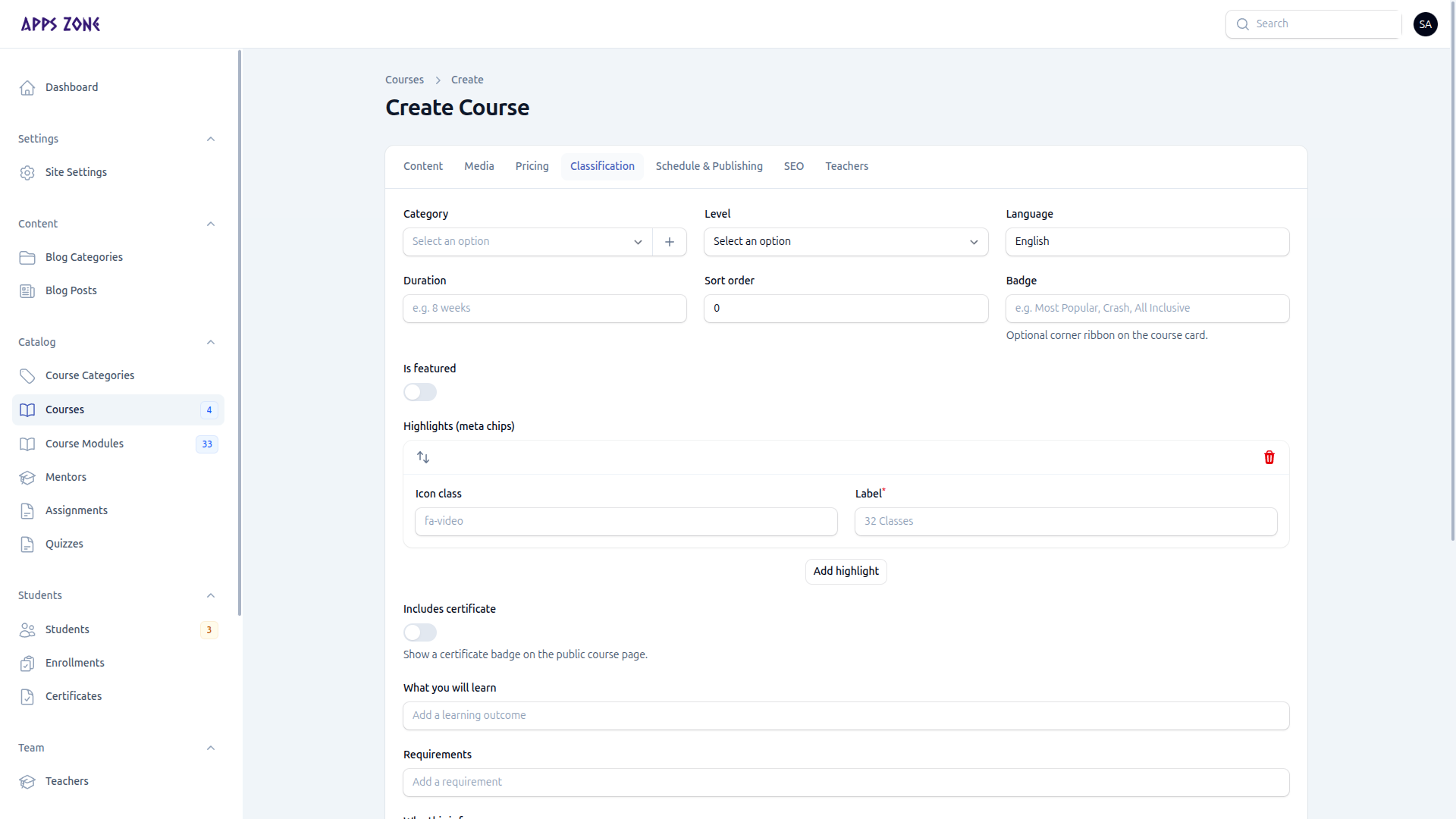
Category (quick-create is allowed), level, language, duration, sort order, badge, featured flag, and highlight chips.
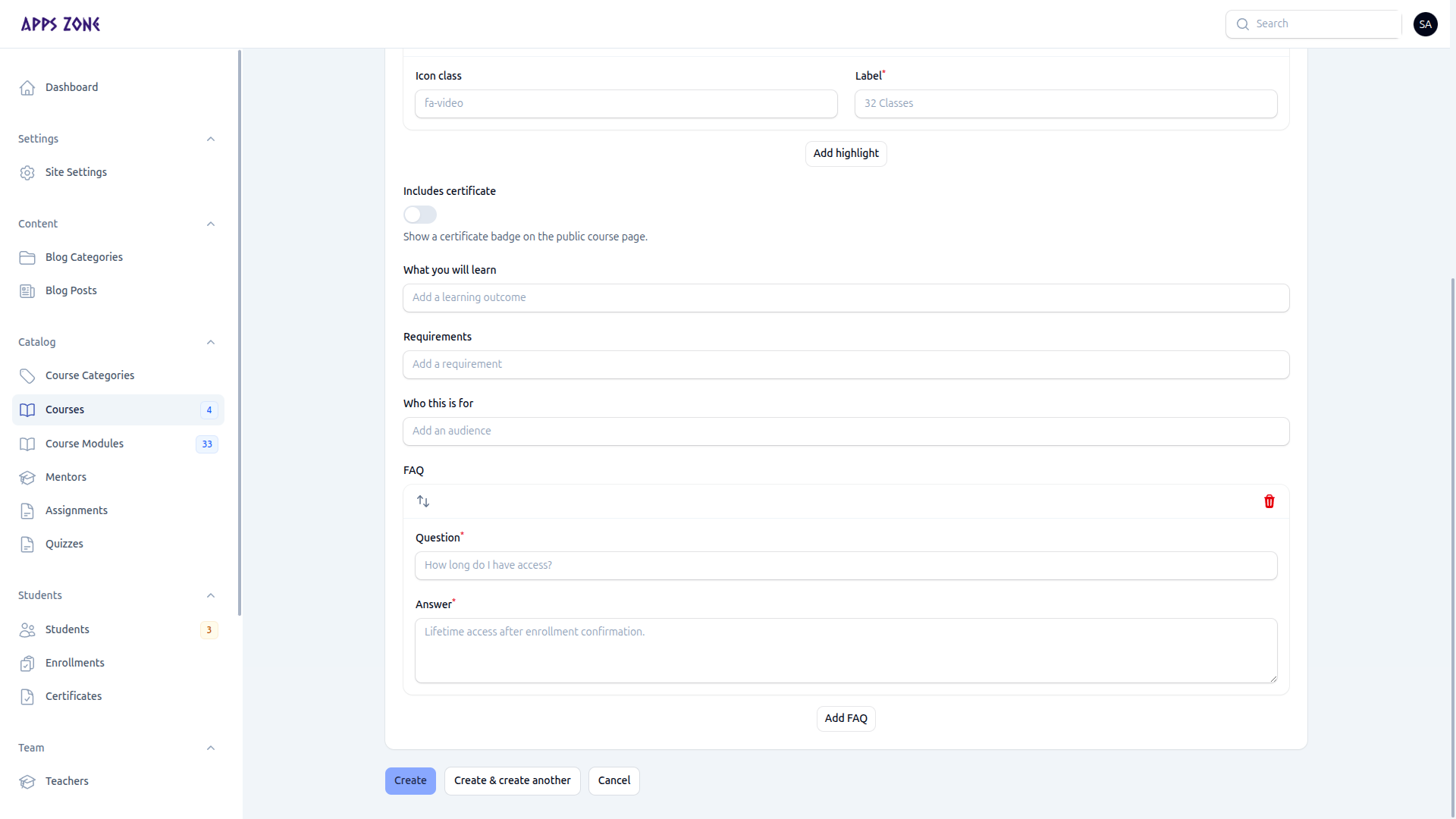
Lower on the same tab: certificate badge, what you will learn, requirements, who this is for, and FAQ rows.
5. Schedule & Publishing
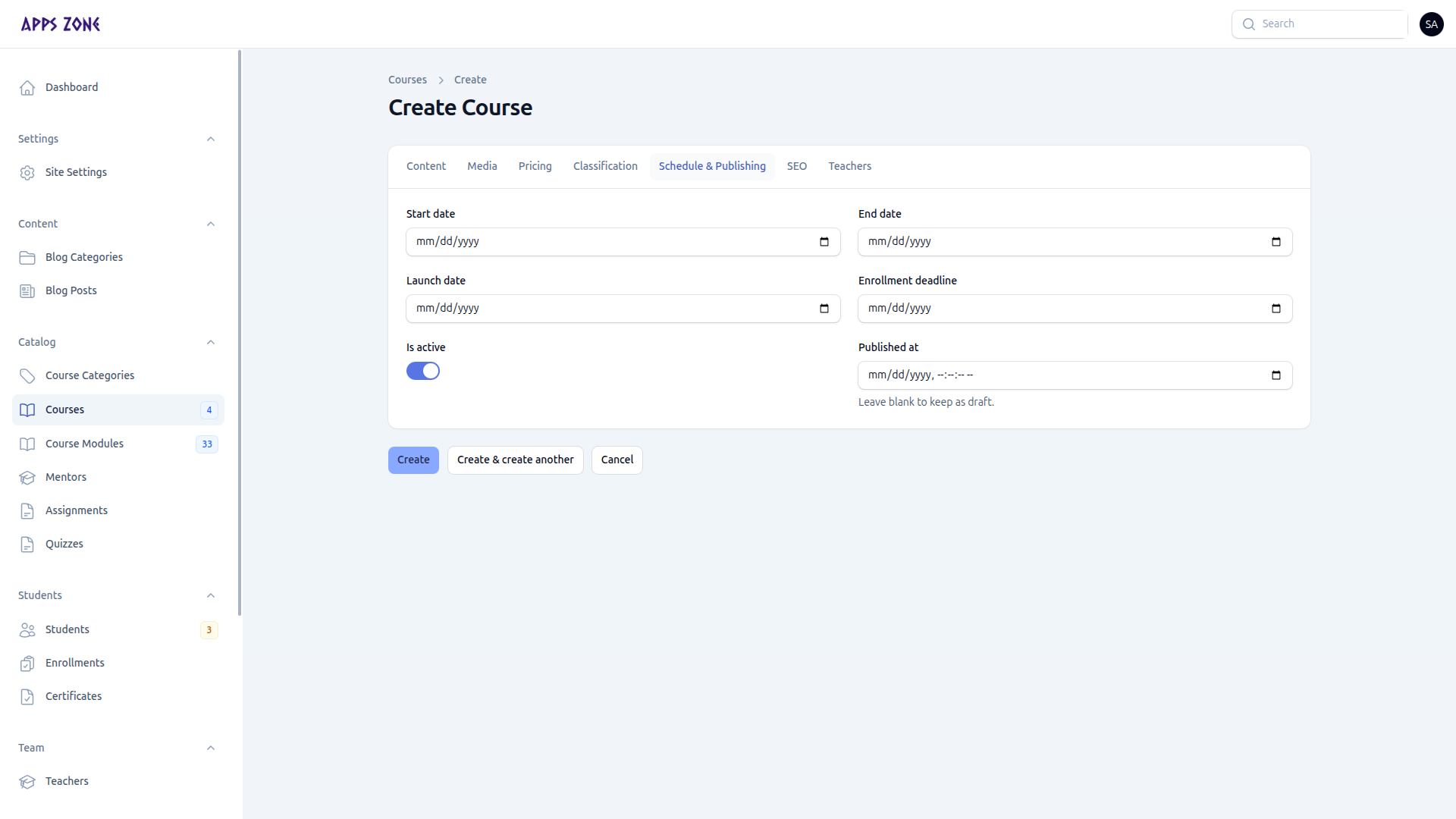
Set start/end/launch/enrollment deadline. Turn Is active on. Set Published at to go live; leave it blank for a draft.
6. SEO
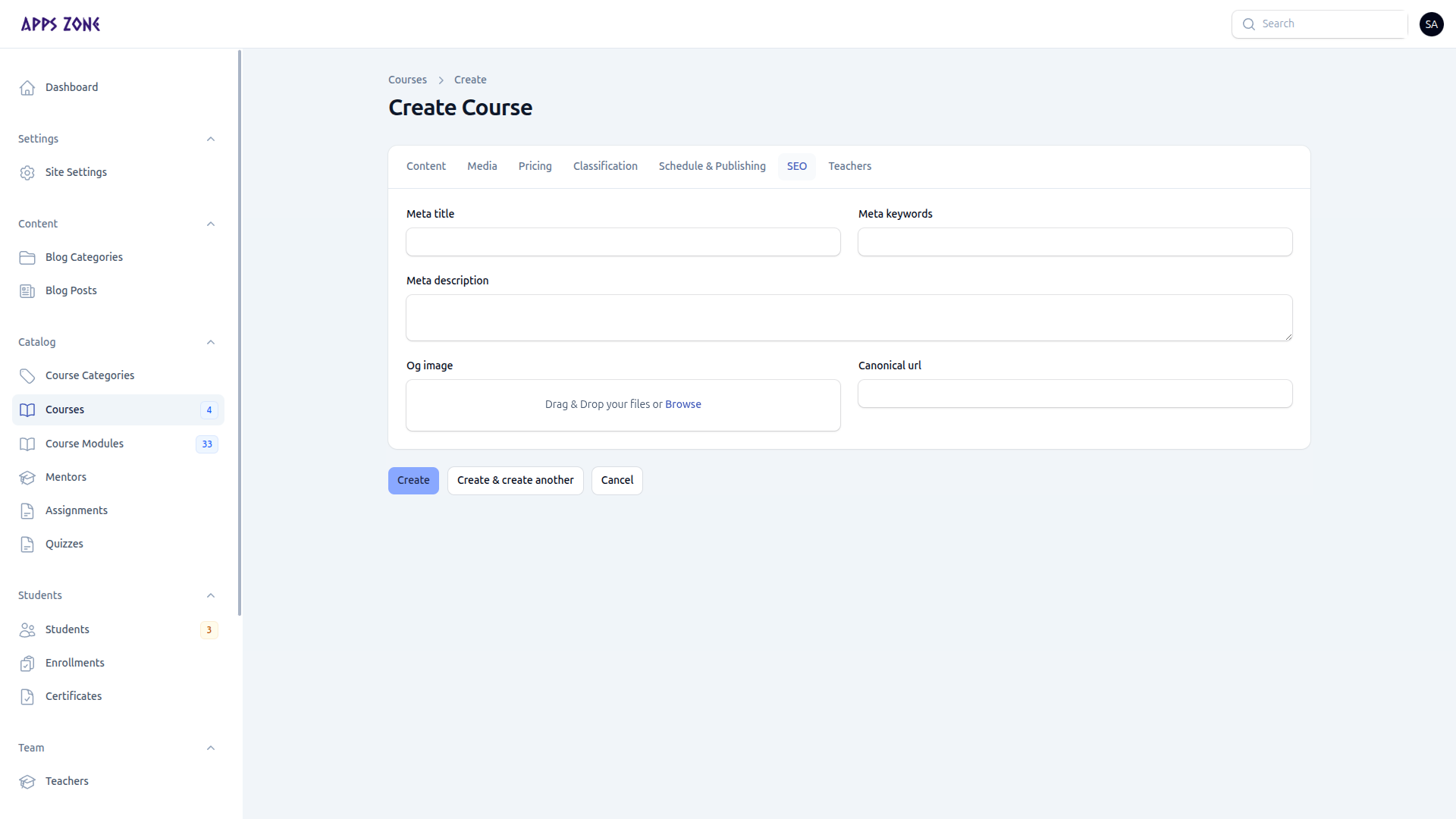
Meta title, keywords, description, OG image, canonical URL.
7. Teachers (admins only)
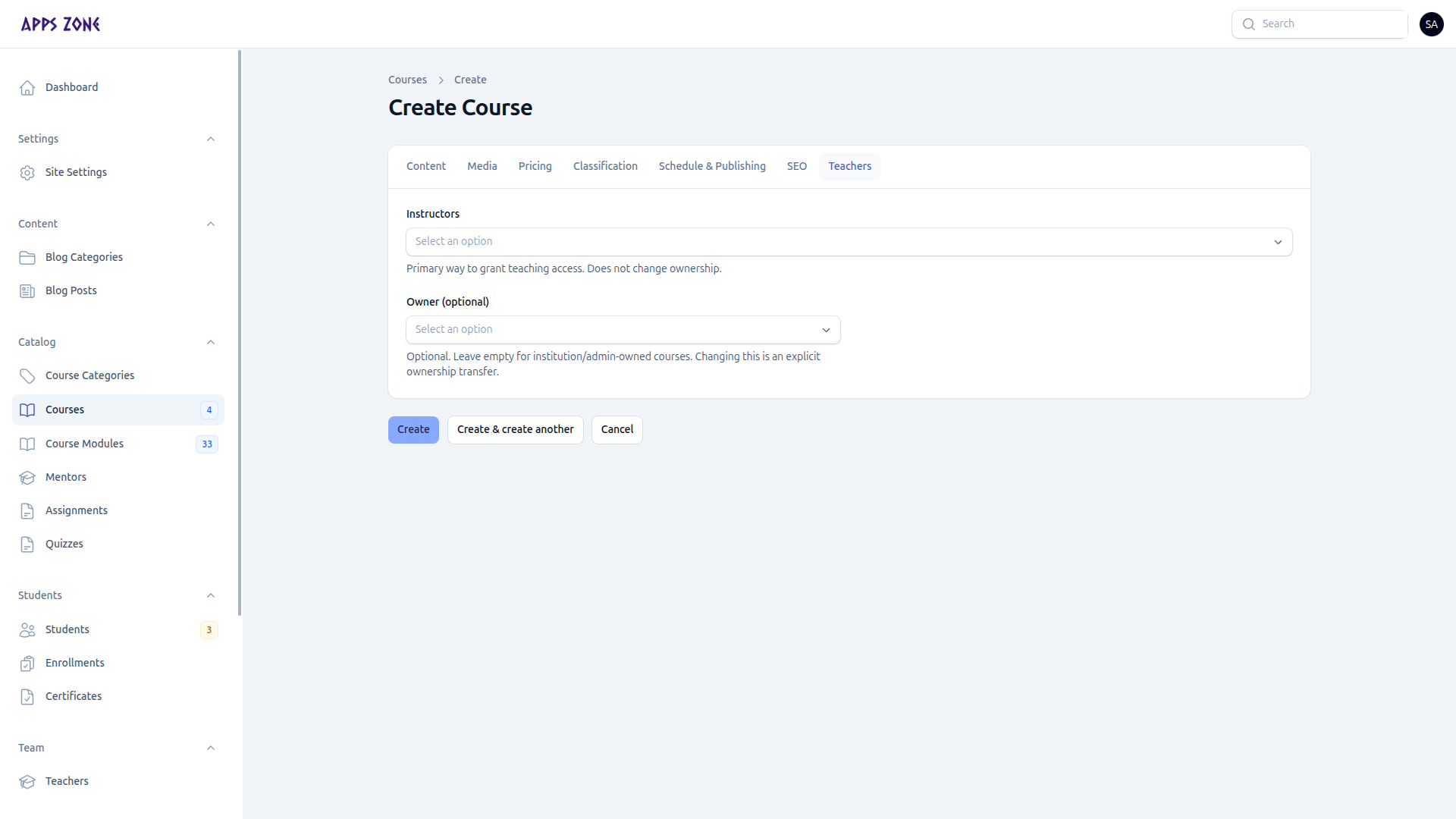
| Field | Effect |
|---|---|
| Instructors | Grants teaching access without changing ownership |
| Owner | Optional ownership transfer; leave empty for institution-owned courses |
Teachers who create a course become its owner automatically. They only see courses they manage.
After save
Open the course to add modules from the relation manager, or use Catalog → Course Modules. Then attach lessons, assignments, and quizzes.