
Open a support thread and chat with staff.
Q&A is your conversation list with staff. Threads are scoped to your account.
There is no screenshot of the list in this set. You will see subject, optional course (General if none), status, message count, and last activity. Ask a question is the header action.
Start a thread
- Click Ask a question.
- Enter a subject (required).
- Optionally pick a related course — only courses you already have an enrollment for.
- Create. You are sent to the thread to type the first message.
The thread opens as Open.
Chat
Open on a row (or after create) shows the message panel: bubbles, composer, search, and load-more for older messages. You post as the student; staff replies appear in the same thread.
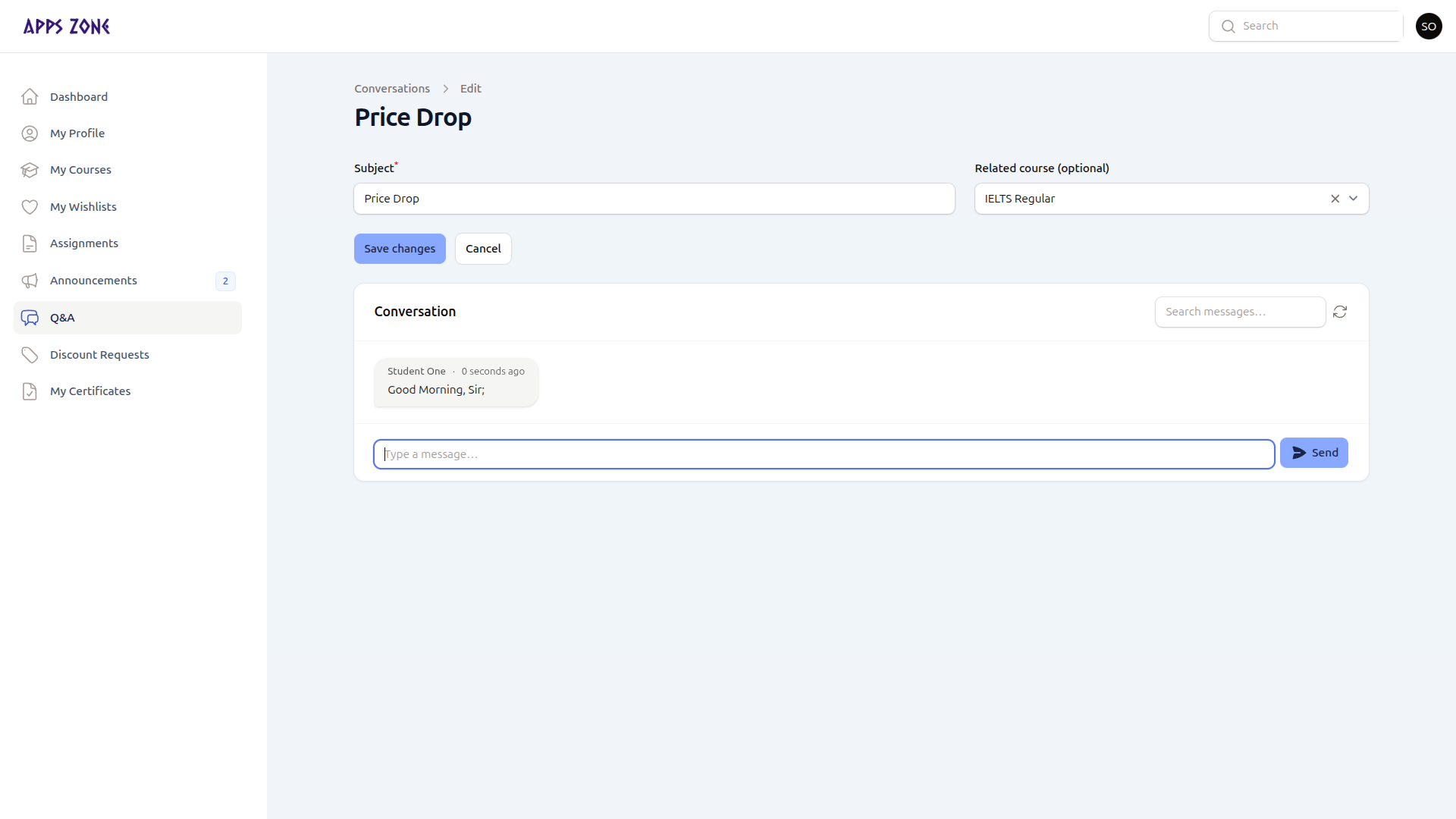
Staff can close a thread when it is resolved. You still see it in the list.